How to use Foilquiver
Get started with Foilquiver in a few minutes. Everything below works the same on the web app, iOS and Android.
Find and compare foils
1. Browse and search
Scroll the entire database, or search by brand, model — or a number you remember, like a wing span or area.
2. Sort any column
Tap the arrows in a column header to sort by that spec.
3. Apply filters
Open the top-right menu → Filters to narrow the table to specific brands or models. Filters combine.
4. Compare side by side
Select foils and hit Compare. Add more from search inside the comparison; tap a foil to remove it.
5. Open a foil’s page
Tap any foil to open its page: the full spec card, community rating and reviews, and a link to the manufacturer’s product page.
6. Switch metric and imperial
Open the top-right menu → Settings and pick your unit system. Every span, area and weight updates everywhere — the table, comparisons and foil pages.
Reviews and corrections
7. Read and write reviews
Every foil’s page shows rider reviews. Sign in to leave a star rating and a written review of gear you’ve actually ridden.
8. See a wrong spec? Suggest a fix
On any foil’s page, choose “Suggest a fix”, pick the field, and propose the correct value. Suggestions are reviewed before specs change.
Your quiver
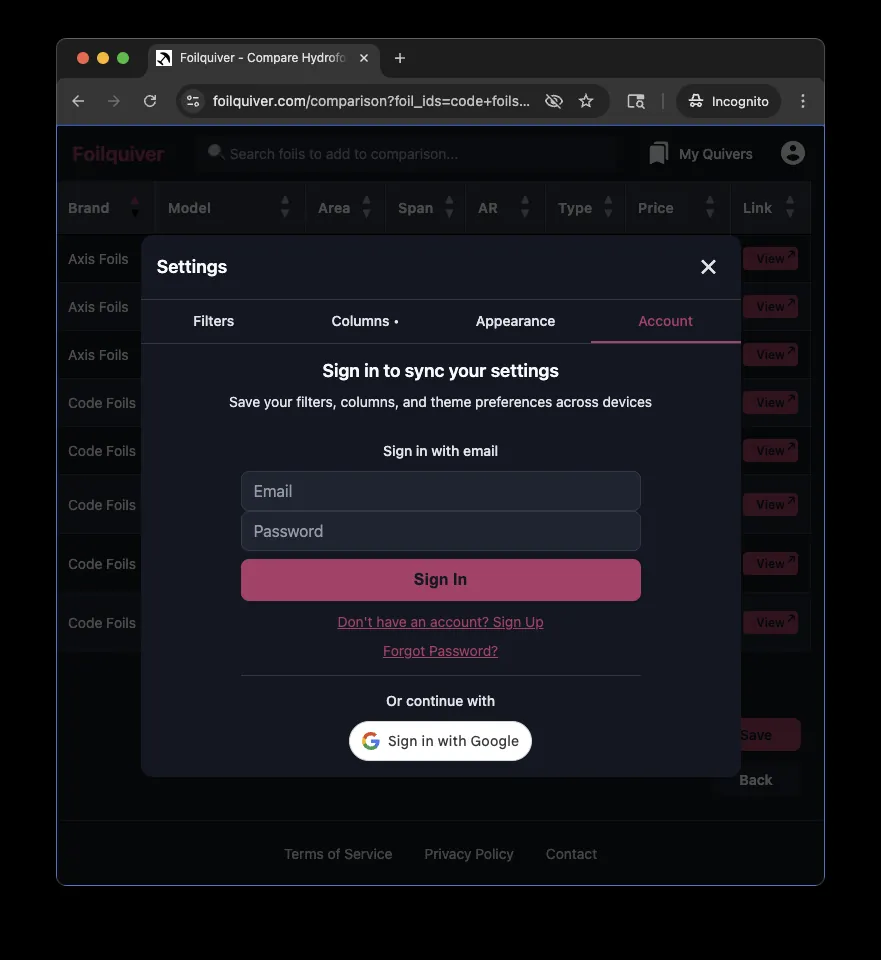
9. Sign in
Open the top-right menu → Account. Foilquiver is free and will never sell your data.
10. Create a quiver
My Quivers → Create New Quiver. Name it, add foils from search, save. Make it public to share it with a link — comparing a new foil against your own quiver is the best way to see where it fits before you buy.
Discover
Browse public quivers from other riders — sorted by newest or most liked — at Discover. Rider profiles stay private unless the rider opts in.
Getting help
Questions or problems: info@foilquiver.com, or @foilquiver on Instagram and Facebook.